Screen2ipcam
ONVIF Profile S · H.264 RTSP

Turn any Windows screen into an ONVIF / RTSP IP camera

Screen2ipcam publishes a Windows PC screen as a standard IP camera. Your NVR or VMS discovers and records it like any other camera — no capture card, no hardware encoder.

Signed by Microsoft — now on the Microsoft Store
Windows 7 → 11 · 32 & 64-bit ~2% CPU while streaming No .NET, no redistributables English & Arabic — interface, guide and direct support
Windows 7 → 11 ONVIF · Profile S RTSP · H.264 ★ 5.0/5 · 100% CLEAN — Softpedia
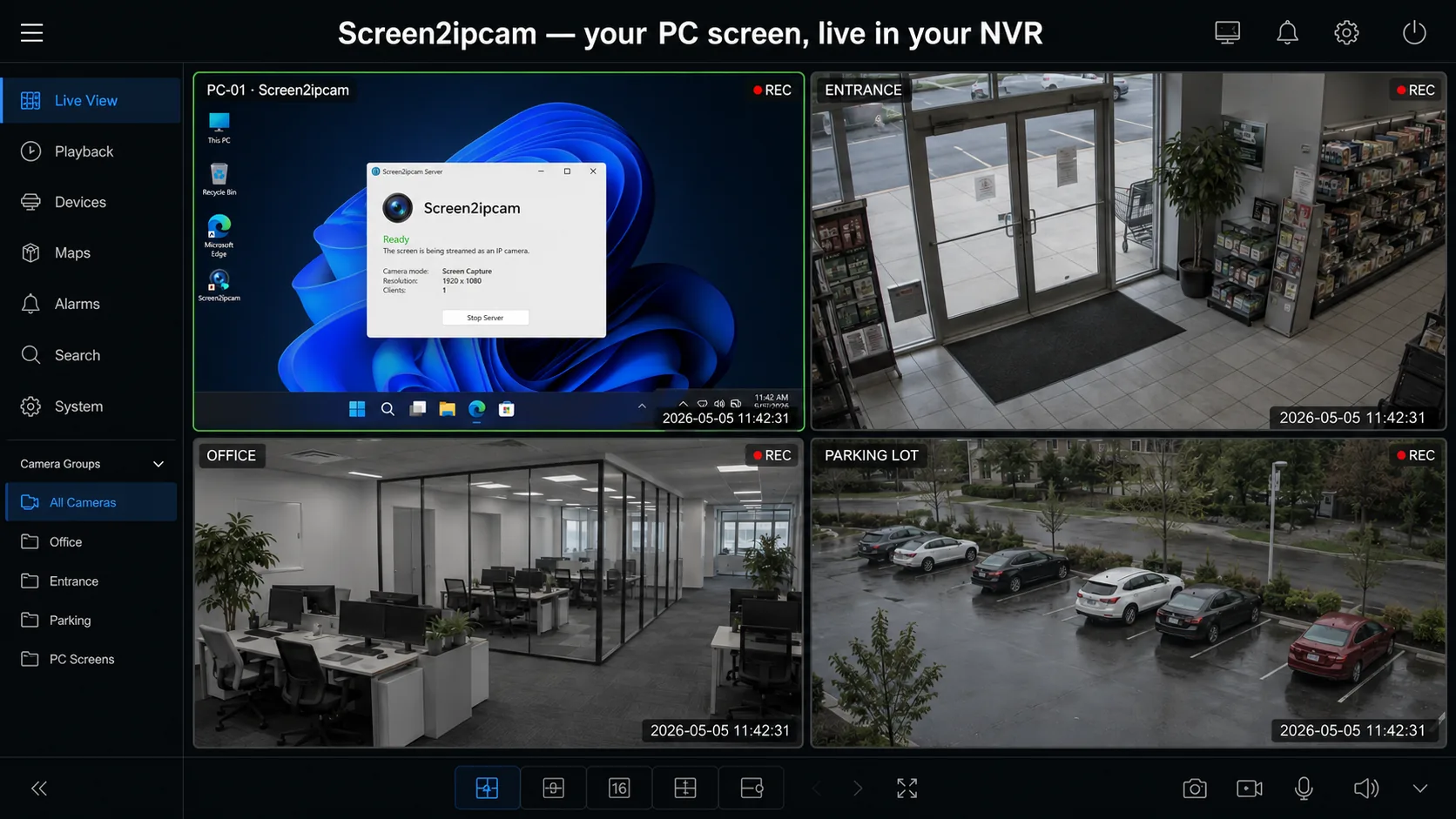
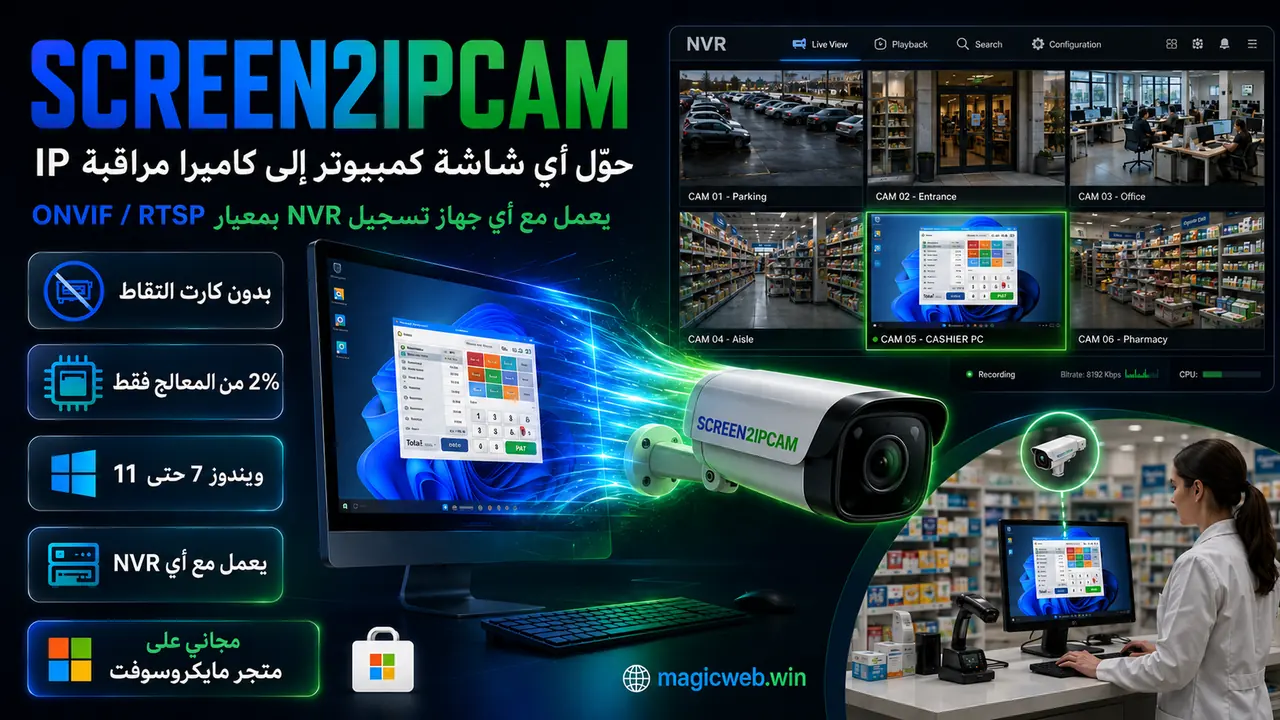
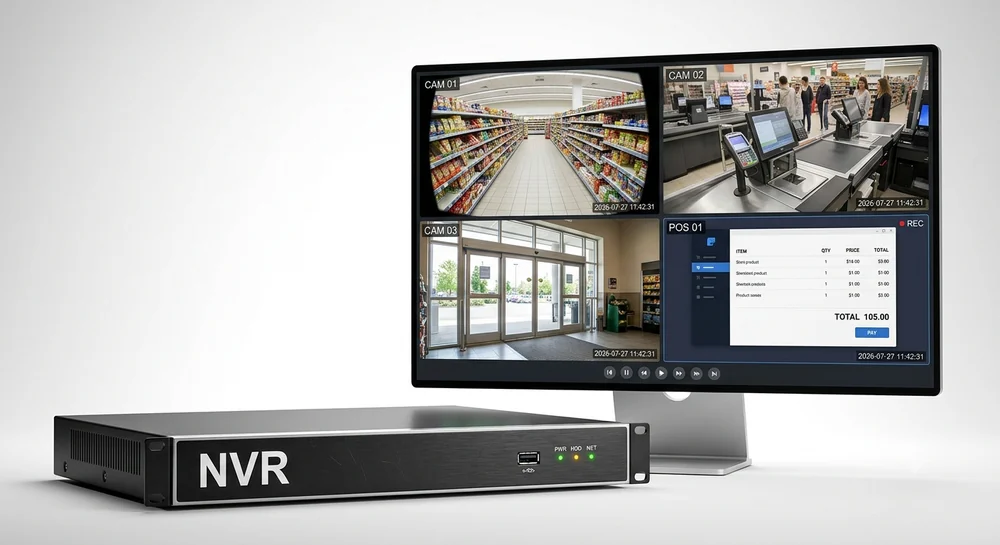
A Windows PC screen shown live inside an NVR grid next to real cameras
Works with
Profile S Built on the open ONVIF standard — auto-discovered by any conformant NVR / VMS, plus direct RTSP.
Hikvision Dahua Technology Blue Iris Genetec Nx Witness — Network Optix Synology QNAP XMEye VLC
Milestone XProtect · Agent DVR · & any ONVIF / RTSP NVR · VMS
How it works

A camera, without the camera

Software only. It drops into your existing surveillance system like any IP camera.

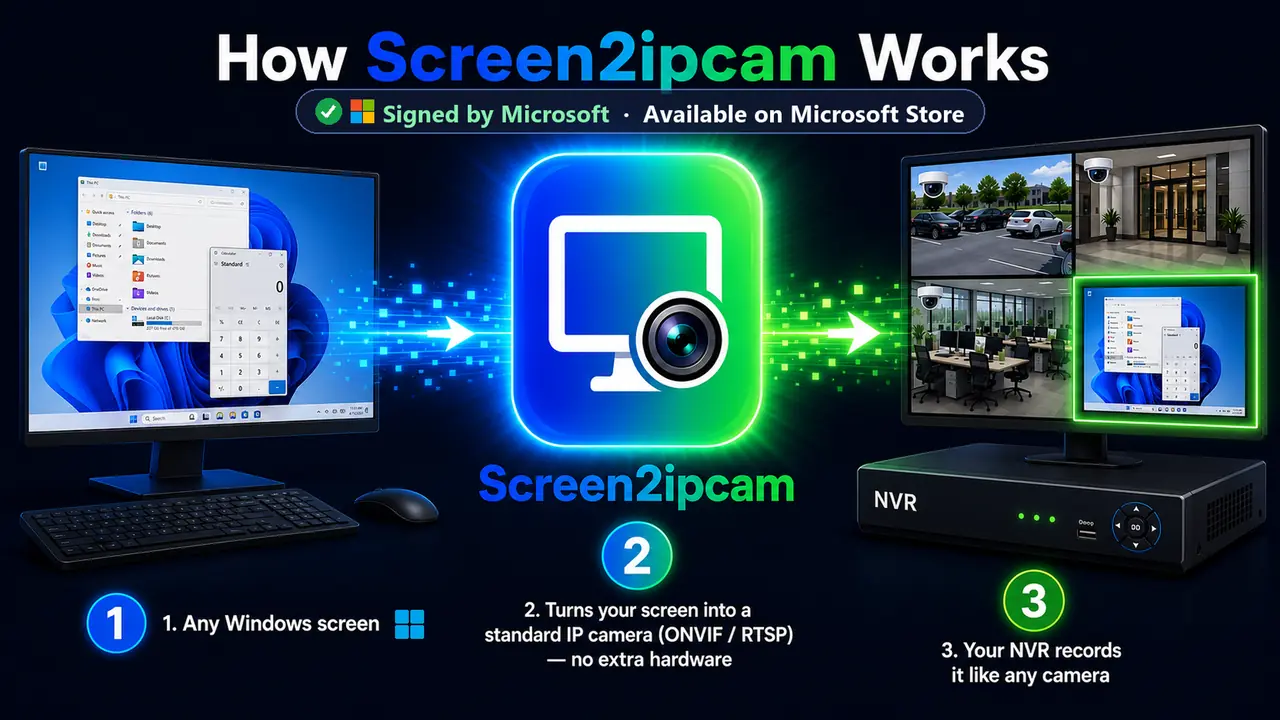
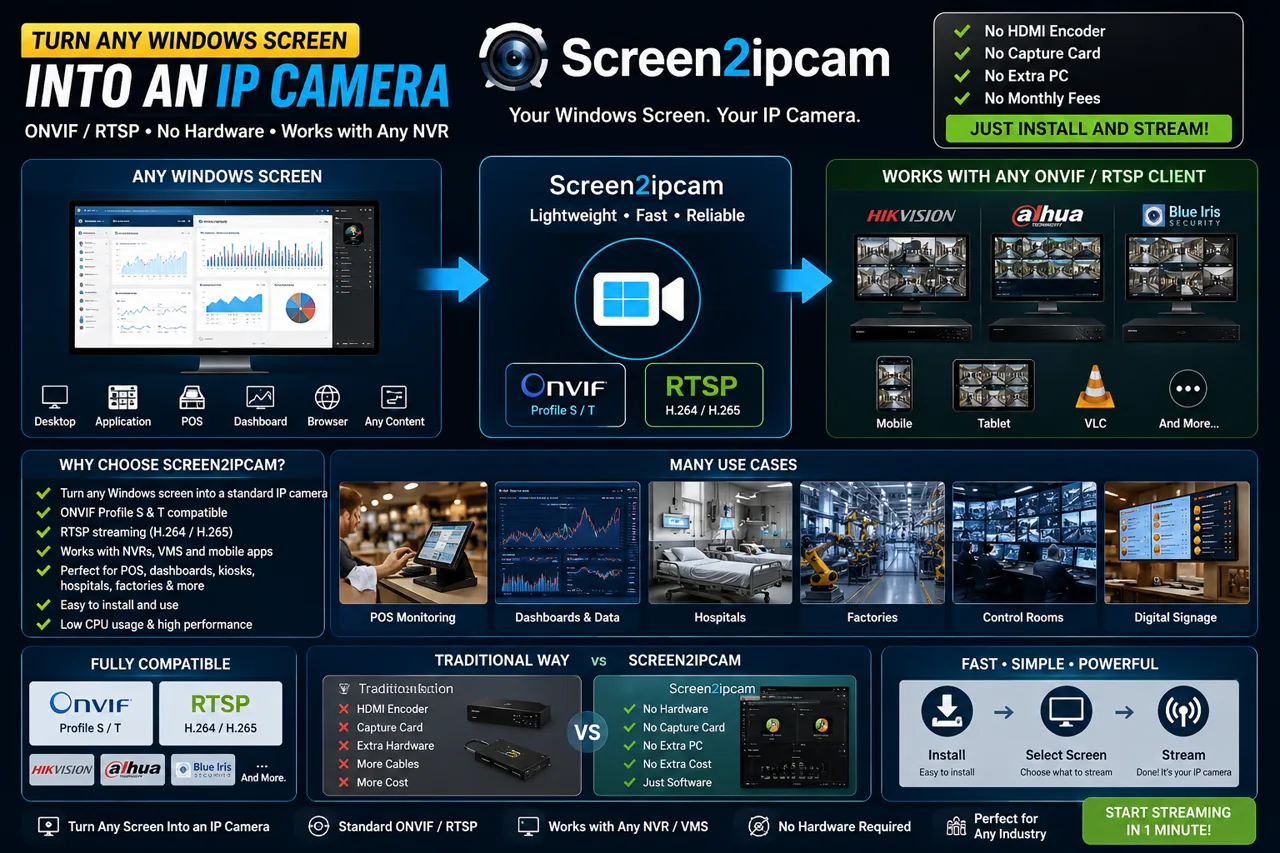
How Screen2ipcam works — any Windows PC screen becomes a standard ONVIF / RTSP IP camera recorded by your NVR or VMS, with H.264 encoding and no extra hardware
PC screen H.264 encode ONVIF / RTSP Your NVR / VMS
1

Install & run

Run the installer on the Windows PC. It starts as a tray app or an always-on Windows service.

2

It becomes a camera

The PC now publishes its screen as an ONVIF Profile S camera with an H.264 RTSP stream.

3

Add it to your NVR

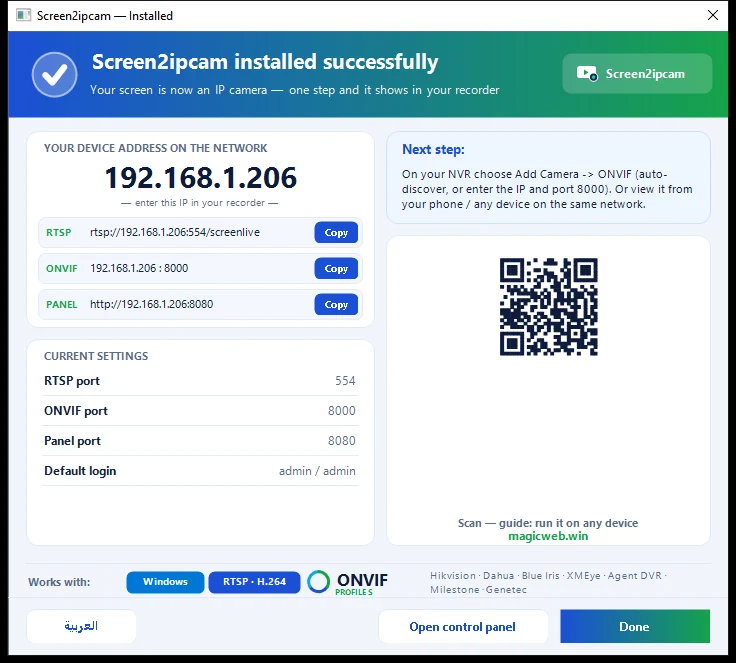
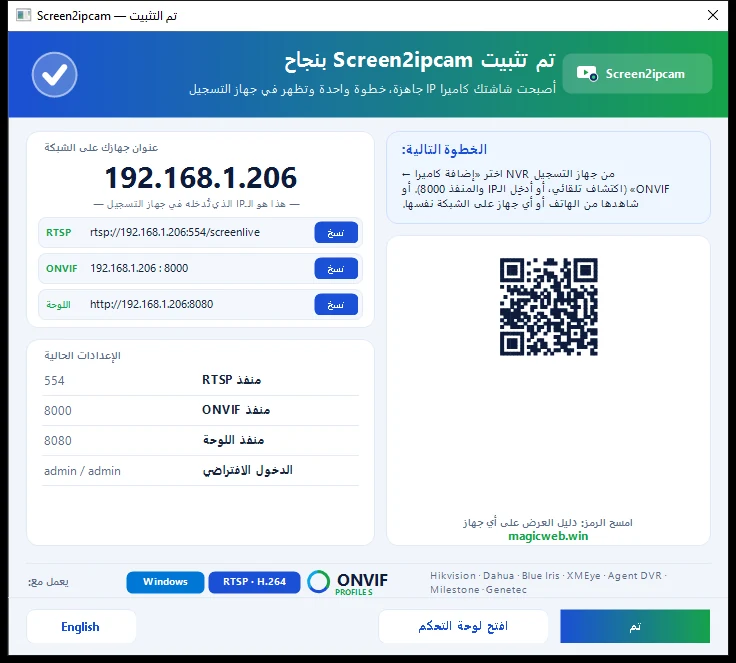
On your NVR: Add Camera → ONVIF (auto-discover, or enter the PC's IP). Record it like any camera.

Features

Everything an IP camera does — in software

ONVIF Profile S

Auto-discovered by NVRs over WS-Discovery, or add by IP. Standard, not proprietary.

RTSP H.264 — Main + Sub

Dual streams plus JPEG snapshot (GetSnapshotUri) for full NVR compatibility.

Lightweight

~0% CPU idle, ~2% while streaming, ~70 MB RAM. Native C++ with a static runtime.

Windows 7 → 11, 32 & 64-bit

Runs on Windows IoT / Embedded / POSReady too. No .NET, no redistributables.

Service or tray app

Install as an always-on Windows service (starts before sign-in) or a simple tray app.

Web + native control panel

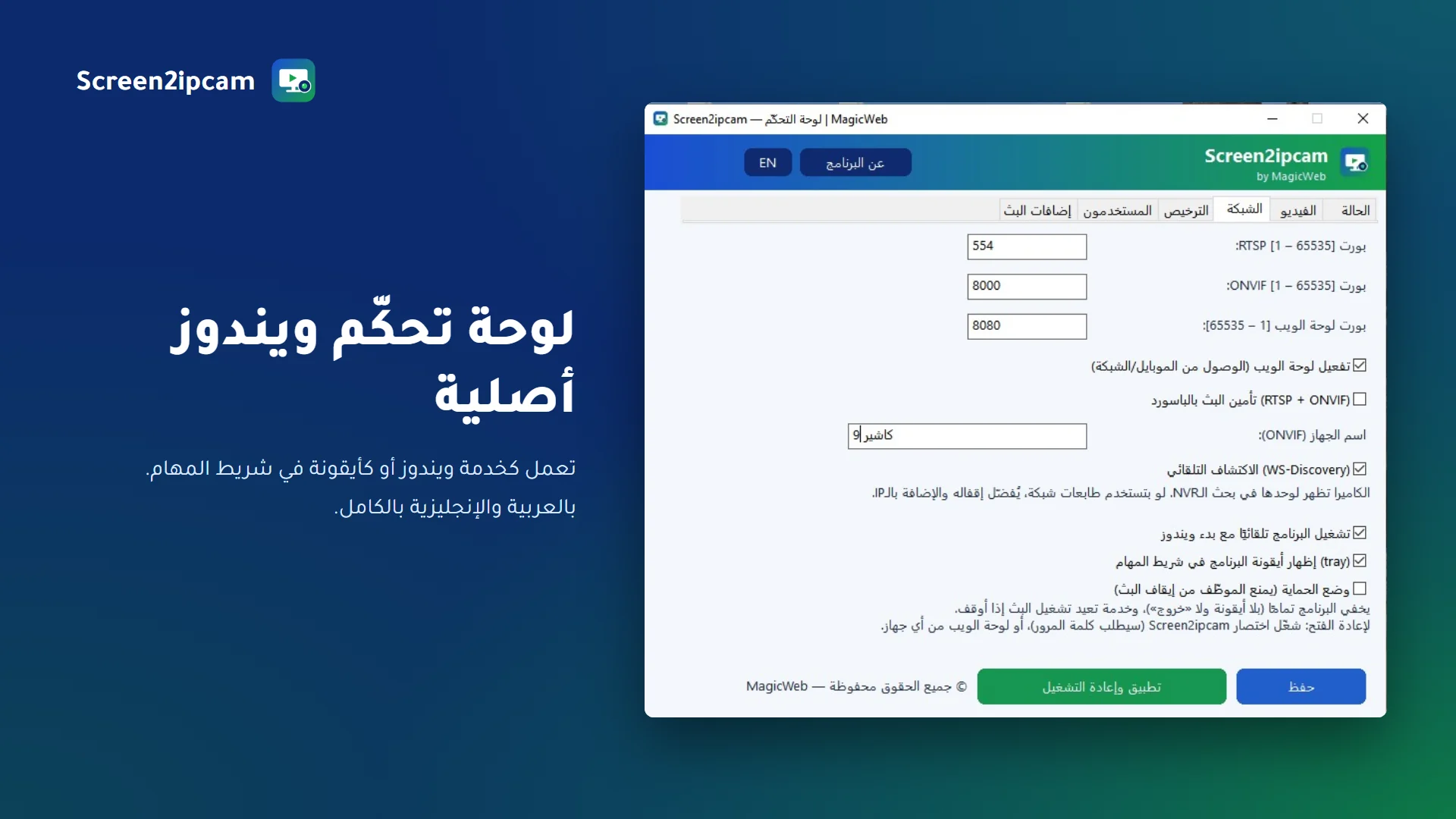
Configure from a native GUI, a browser panel, or a config file. Bilingual UI — English / Arabic.

Why Screen2ipcam

Skip the hardware. Skip the cost.

HDMI / capture-card route

  • A hardware video encoder per screen ($$$)
  • Cables, HDMI splitters, extra power
  • Quote-based pricing, slow procurement
  • Hardware to mount, power and maintain

Screen2ipcam

  • Software only — runs on the PC you already have
  • From $20. Instant download, instant license
  • Standard ONVIF / RTSP — drops into any NVR
  • Nothing to mount — minutes to set up
Where it's used

Any screen worth recording

🧾POS & cashierReview a transaction next to the camera feed
🏫Schools & trainingSupervise lab / lecture / exam screens
🏭FactoriesKeep SCADA / HMI / line screens on the recorder
🚚WarehousesCapture WMS / dispatch screens with site cameras
🏥Healthcare & labsRecord approved equipment / monitoring screens
🎓Exam centersSupervise exam workstations
🏢Remote branchesWatch a screen through the system you already use
🖥️Dashboards & signageKeep a control-room display on the NVR
Screenshots

See it in action

Screen2ipcam — turn any PC screen into an IP camera
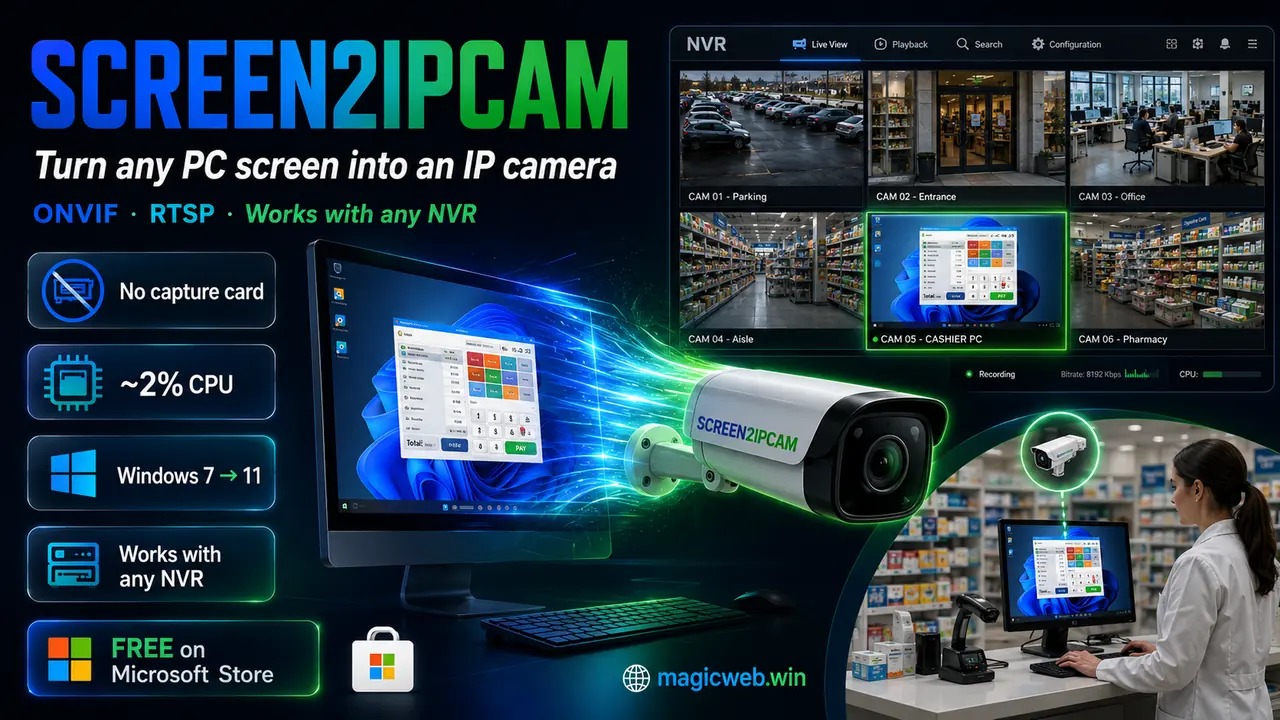
How Screen2ipcam works — turn any Windows screen into an ONVIF / RTSP IP camera that works with any NVR, VMS or mobile app, with no capture card or HDMI encoder
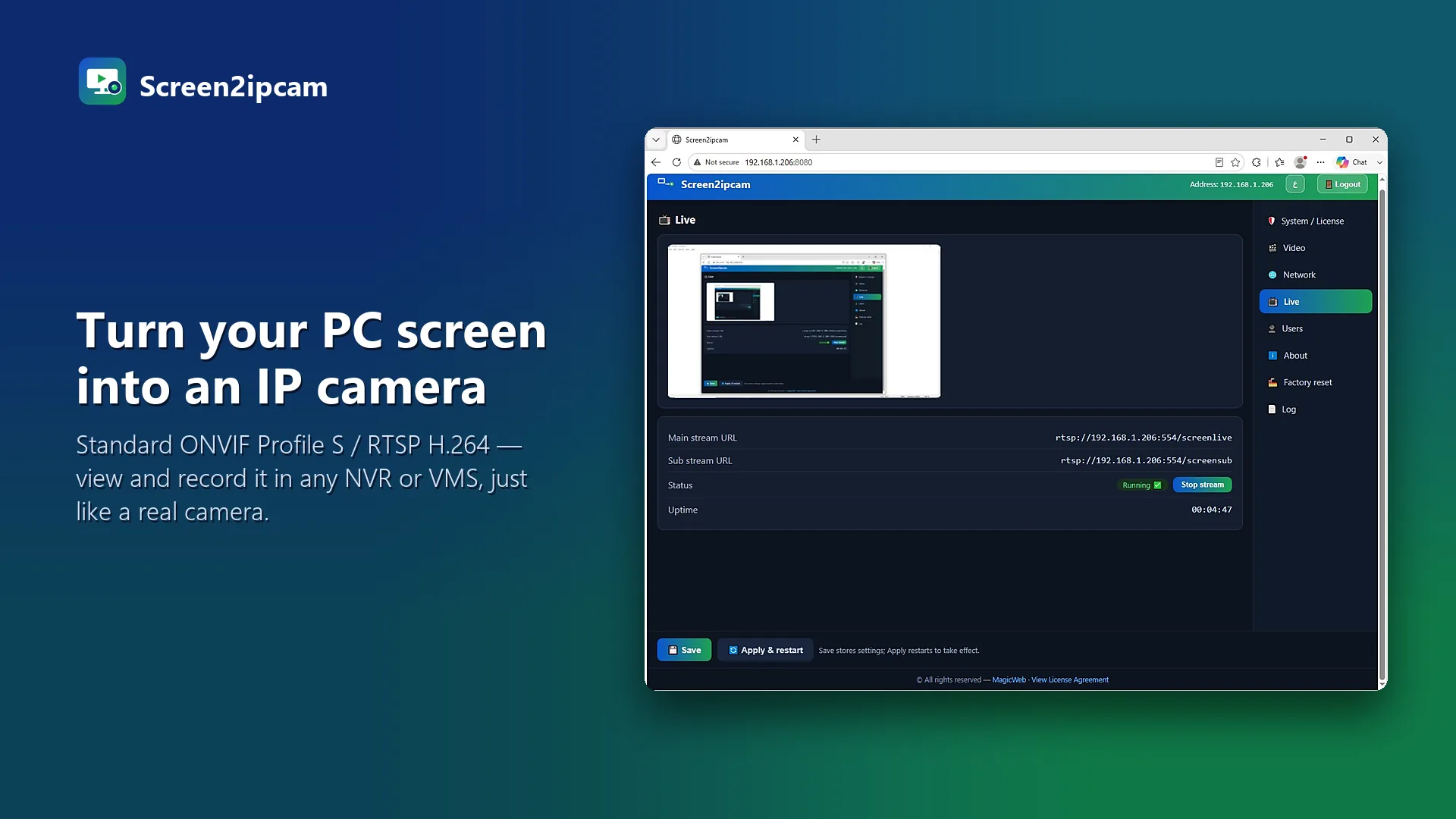
Turn your PC screen into an ONVIF / RTSP IP camera
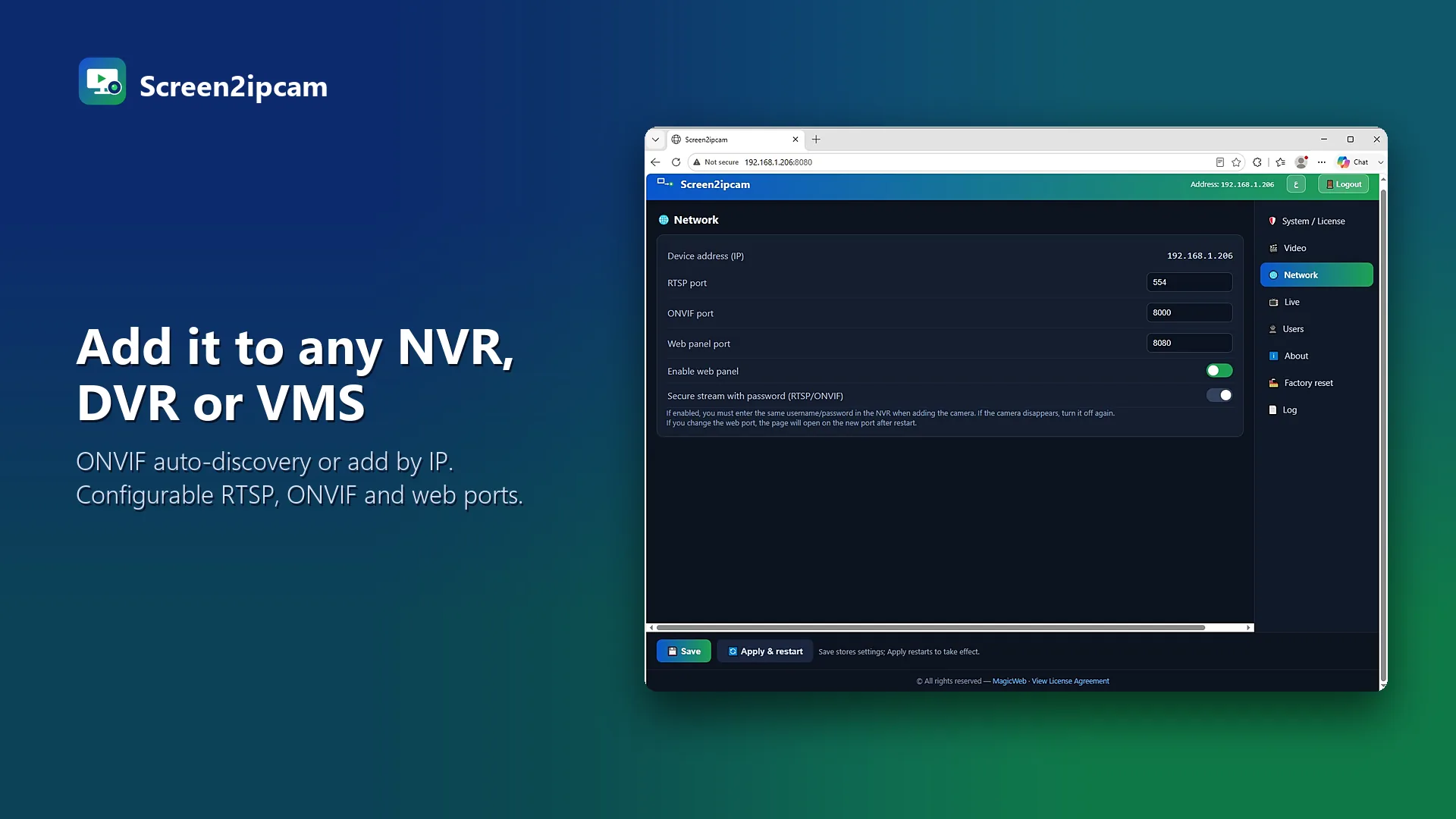
Add it to any NVR, DVR or VMS
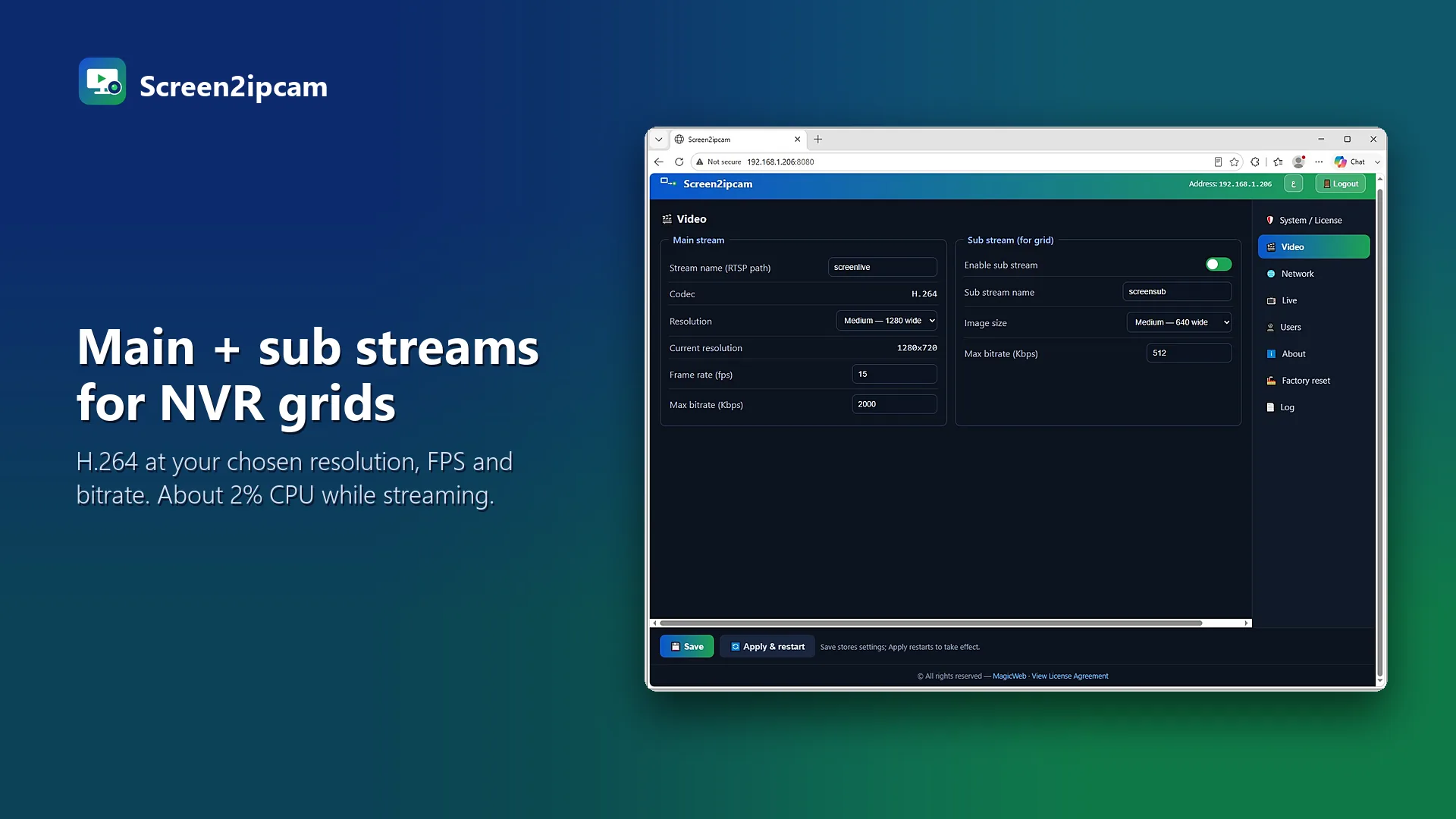
Main and sub streams for NVR grids
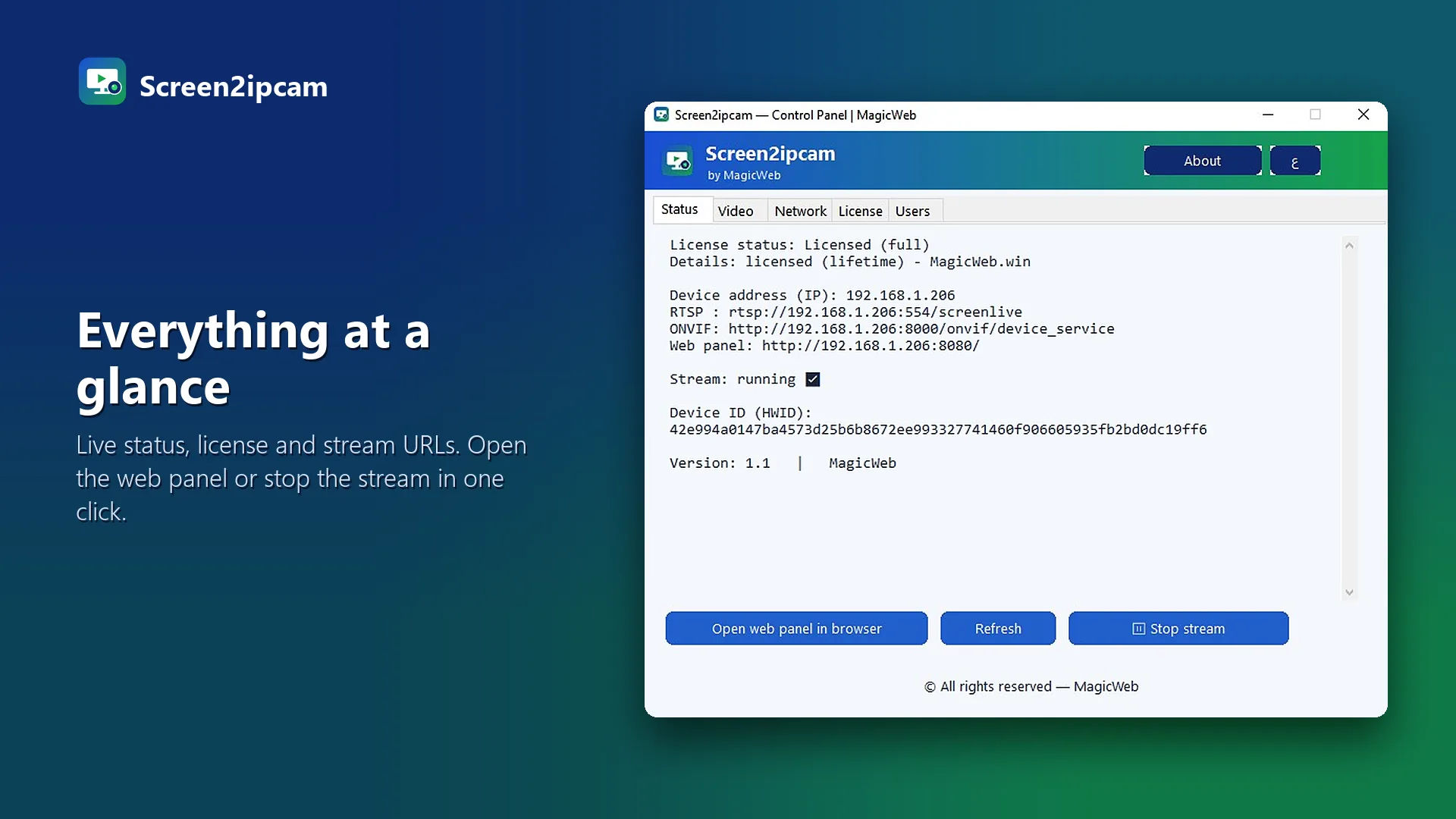
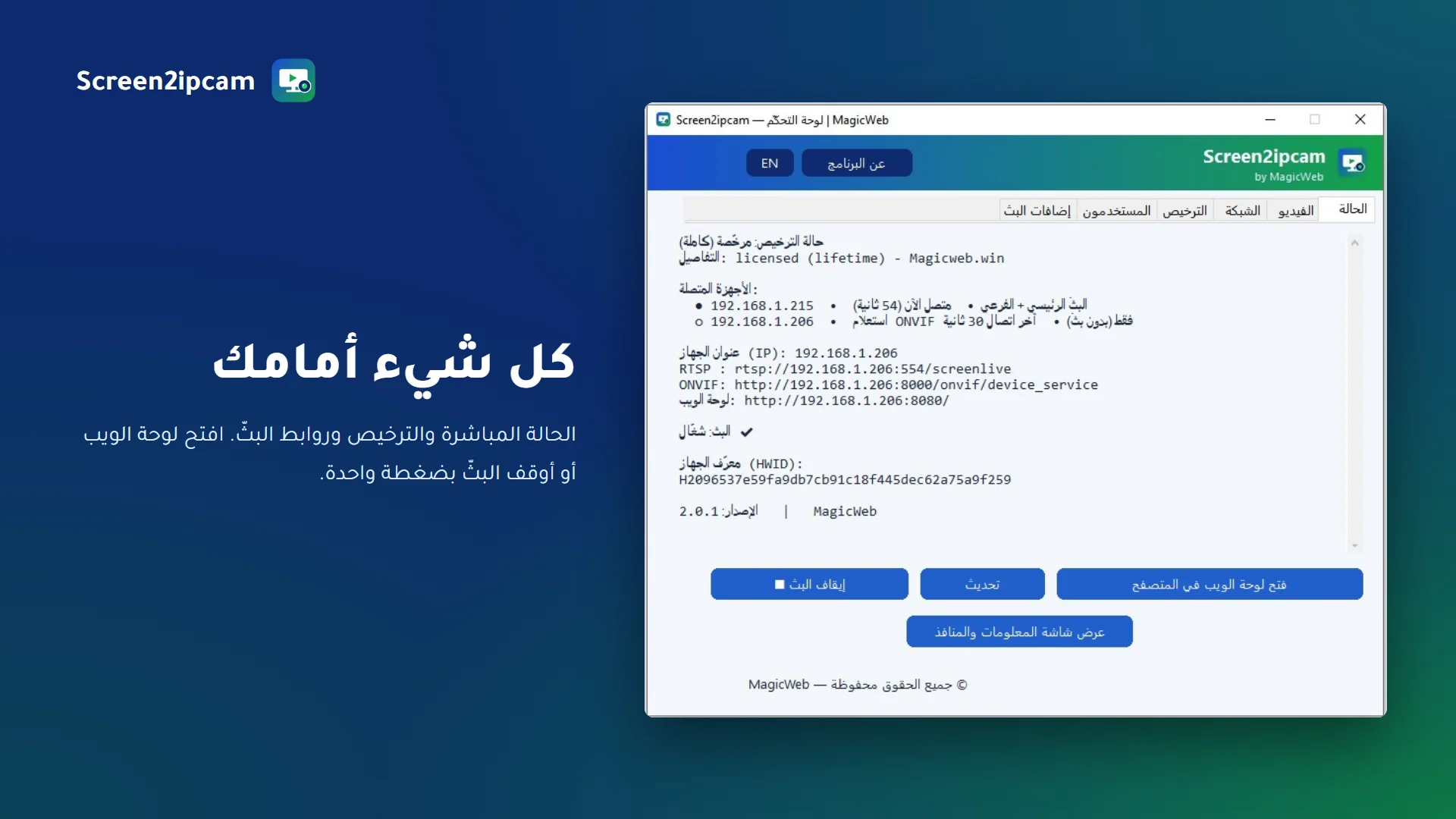
Everything at a glance
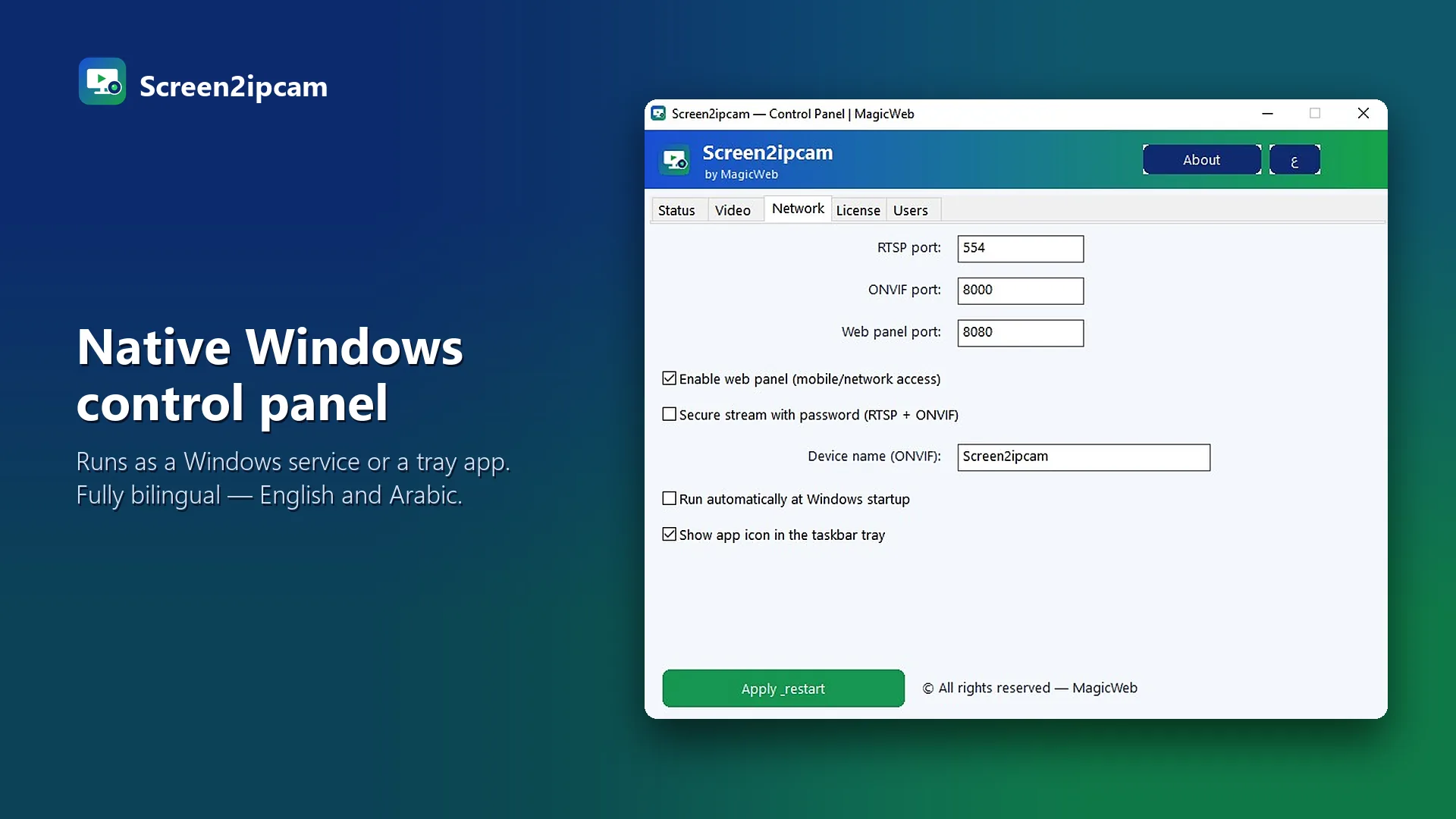
Native Windows control panel
Pricing

One price. Yours for life.

A one-time purchase — no yearly subscription and no other fees. One license activates one PC.

🌍 Paying from outside Egypt
★ Launch offer — limited time

Lifetime License

$55$20 USD
Save 64%
  • Full version, no watermark
  • Activates one PC
  • Never expires — no yearly renewal
  • Future updates included
  • Instant delivery
Your license is tied to your PC hardware — not to your Windows installation. Format Windows. Swap the drive. It keeps working. No activation server. No Internet required. No recurring activation.
⚡ Get your license faster
Device ID — from the Screen2ipcam app
Open the License window in the app and copy your Device ID here. Your activation key is created for this device after payment, and the license file is emailed to you.
Get Lifetime — $20
PayPal 100% secure payments via PayPal
Visa Mastercard American Express Discover JCB Diners Club UnionPay Maestro
Credit and debit cards are welcome — you do not need a PayPal account to pay. The cards available to you depend on your country.
Pay once, use forever — no subscription and no other fees.
🏠 Paying from inside Egypt
★ Launch offer — limited time

Local payment

2800 جنيه≈ 1000 جنيه مصري
Save 64%
The same lifetime license — pay in Egyptian pounds from any local wallet.
Vodafone Cash InstaPay
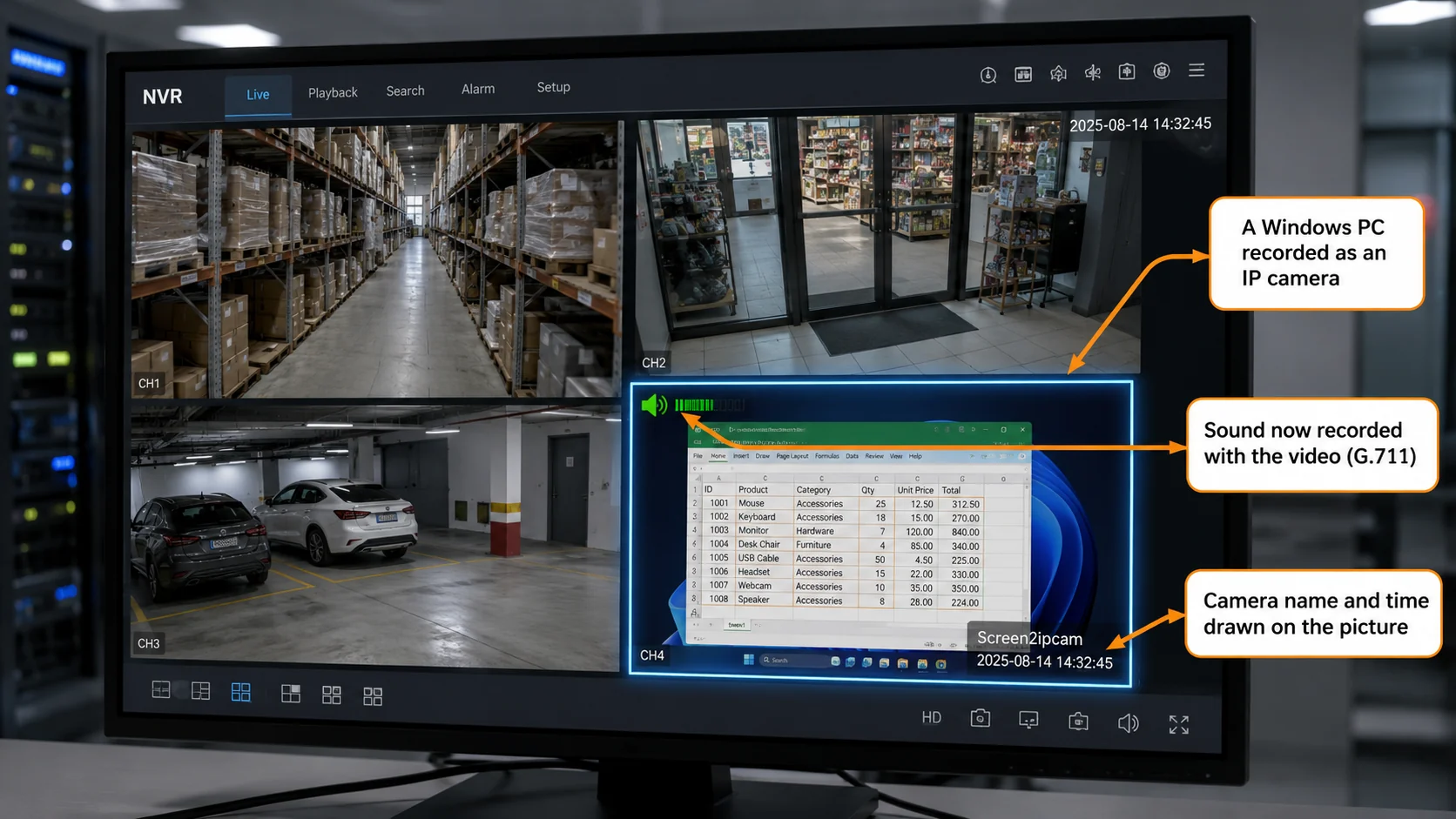
Cashier screen recorded inside the shop NVR next to the camera channels
Your cashier screen recorded inside the shop's own NVR — beside the camera channels.
Contact us to pay via Vodafone Cash or InstaPay.
Contact us to pay
💳 Pay by PayPal or by card — instantly, from any country. Once payment is received, your full license is generated and sent to you — usually within an hour or less.

Business & multi-site

Five devices or more — branches, chains and integrators. One invoice, one delivery, a price that scales with the number of licenses.

  • Volume pricing from 5 licenses
  • All licenses delivered together
  • Priority support in English or Arabic
Custom pricing
Ask for a quote
Get licensed in 4 steps

From trial to full — fast

1
Download & try

Install the free trial and confirm it works with your NVR.

2
Pay securely

Click Get Lifetime above and pay by PayPal or card — $20, one time.

3
Send your Device ID

In the app: Control panel → License → copy your Device ID (HWID) and send it with your receipt.

4
Activate

We send your license file. Paste it in the License tab → Activate. Done — no watermark.

ℹ️ Each license is tied to one PC's Device ID, so we need the Device ID from the exact machine you'll run it on. The Contact form below has a field for it.
Download

Free 14-day trial

Same installer for trial and full — a license just unlocks it. Choose your Windows build.

Lightweight and easy to use, signed by Microsoft and available on the official Microsoft Store — install in one click.
📄 New here? Grab the full User Guide (PDF).
Download from the Microsoft Store Download fromSourceForge 100% CLEAN · Download fromSoftpedia
The free edition is on the Microsoft Store (signed by Microsoft, auto-updates) — also mirrored on SourceForge, a trusted host with malware scanning.
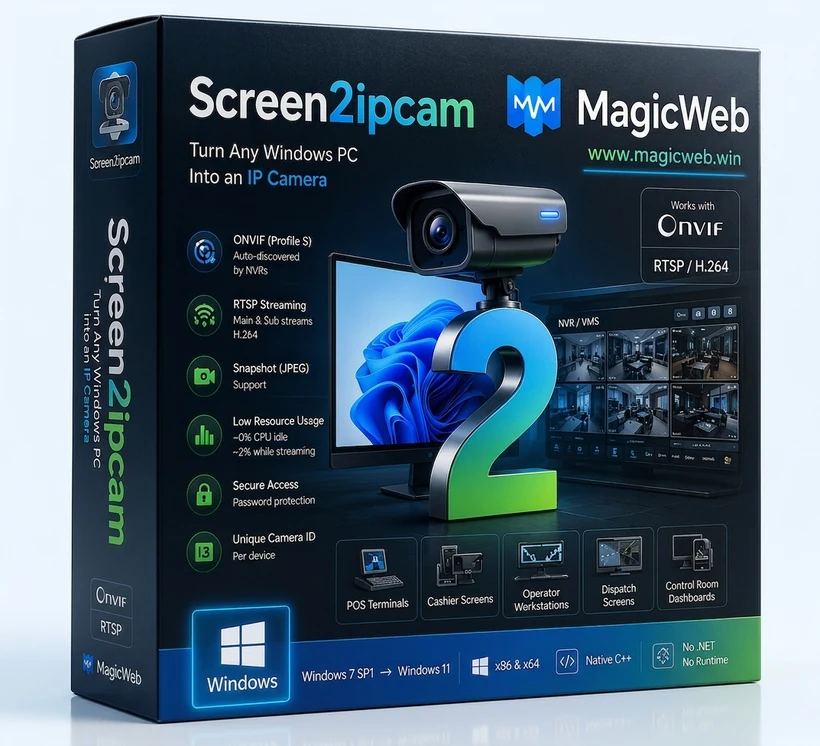
Screen2ipcam retail box — turn any Windows PC into an ONVIF / RTSP IP camera
Click the product image to download Screen2ipcam for Windows — 64-bit
Setup guide

From install to live — in minutes

Everything from the Quick-Start, right here. Same steps work for the trial and the full version.

1 Install & open

  1. Run the installer — x64 for modern PCs, x86 for older / embedded / POS.
  2. Choose to install as an always-on Windows Service or a tray app.
  3. Open the control panel — default login admin / admin (change it after first login).

2 Activate your license

  1. Open the control panel → License tab.
  2. Copy your Device ID (HWID) and send it to us with your PayPal receipt.
  3. We send your license file — paste it and click Activate. The “Trial” watermark disappears.

3 Ports (firewall)

PortProtoPurpose
554TCPRTSP stream (needed by the NVR)
8000TCPONVIF service (needed by the NVR)
8080TCPWeb admin panel (admin only — not needed by the NVR)
3702UDPWS-Discovery (optional — you can add by IP instead)

On a segmented camera VLAN, allow only NVR → PC on 554 + 8000.

4 Add on Dahua

  1. NVR → CameraCamera ListManual Add.
  2. Protocol: ONVIF.
  3. IP: the PC's address · Port: 8000.
  4. User / Pass: admin / admin.
  5. Save → the channel goes live.

5 Add on Hikvision

  1. NVR → ConfigurationCamera ManagementCustom Add.
  2. Adding Method: Manual · Protocol: ONVIF.
  3. Address: PC IP · ONVIF Port: 8000.
  4. User / Pass: admin / admin.
  5. OK → channel online.

6 Supported & uninstall

Tested with Dahua · Hikvision · Blue Iris · Agent DVR, and any ONVIF Profile S NVR / VMS. Stream is standard H.264 RTSP (Main + Sub) with JPEG snapshot.

To uninstall: Settings → Apps (or the “Uninstall Screen2ipcam” shortcut). It asks for the program password (default admin / admin). Forgot it? On the web-panel login click Forgot password?, email the shown Device ID to support@magicweb.win for a reset code, then uninstall.

FAQ

Questions, answered

Which NVRs and software does it work with?
Any system that supports ONVIF or RTSP. Tested with Dahua, Hikvision, Blue Iris and Agent DVR; standard ONVIF/RTSP means enterprise VMS platforms ingest it too.
How long is the trial?
14 days, fully functional. A license unlocks the full version — no watermark, no time limit.
Which Windows versions are supported?
Windows 7 SP1 through Windows 11, both 32-bit and 64-bit — including Windows IoT / Embedded / POSReady. No .NET or extra runtimes needed.
Why does Windows show a security warning?
The binary is native and not code-signed yet, so SmartScreen/Defender may flag it as unknown (a false positive). It’s safe — choose “Run anyway” and keep it. Prefer a zero-warning install? Get the free edition from the Microsoft Store — it’s signed by Microsoft.
How do I get my license after paying?
Send your Device ID (from the app’s License tab) and your PayPal receipt via the Contact form or email. We generate and send your license file — usually within an hour or less.
Is my license tied to one computer?
Yes — each license activates one PC. It is tied to that computer's hardware, not to its Windows installation, so reinstalling Windows or replacing the hard drive will not affect it. That's why we ask for the Device ID of the exact machine.
Will I lose my license if I format or reinstall Windows?
No. Screen2ipcam recognizes your computer itself, not your Windows installation. Formatting the disk or reinstalling Windows changes nothing, so your license simply keeps working — and you can replace the hard drive or the network card and stay licensed. The check happens entirely on your own machine. There is no activation server to reach, no internet connection required and nothing to re-register — which is why Screen2ipcam runs on isolated POS and CCTV networks that never touch the internet.
  • Survives Windows reinstall
  • Survives hard drive replacement
  • Works completely offline
  • No activation server
  • One payment. Yours forever.
Is there a free alternative to DeskCamera for turning a Windows screen into an ONVIF IP camera?
Yes — Screen2ipcam is a lightweight DeskCamera alternative that converts any Windows PC screen, window or webcam into a standard ONVIF Profile S / RTSP H.264 IP camera, with no capture card and no HDMI encoder. It's native C++ (~2% CPU while streaming), with Main + Sub streams, JPEG snapshots and WS-Discovery auto-detection, and it works with Hikvision, Dahua, Blue Iris, Agent DVR, XMEye-based NVRs and any ONVIF / RTSP VMS. Get the free edition on the official Microsoft Store, or the fully-featured 14-day trial — then a one-time $20 lifetime license, no subscription.
How do I convert a Windows screen into an ONVIF / RTSP camera for my NVR?
Install Screen2ipcam on the Windows PC — it publishes the screen as a standard ONVIF / RTSP IP camera on your network. On the NVR or VMS choose Add Camera → ONVIF (auto-discover, or enter the PC's IP and port 8000), and it records like any camera. Ideal for POS terminals, classrooms, dashboards and control rooms.

Contact

Get your license or ask a question

Paid already? Send the details for your license and your Device ID and we’ll send your license file. Have a question? We’re happy to help.

support@magicweb.win
magicweb.win
Licenses are usually sent within an hour or less.
Control panel → License → copy “Device ID (HWID)”. Leave blank if you only have a question.