Screen2ipcam

Turn any Windows PC screen into an ONVIF / RTSP IP camera

Screen2ipcam is a native Windows app (C++, no .NET or extra dependencies) that publishes your screen as a standard ONVIF Profile S / RTSP H.264 camera. Your NVR or VMS auto-discovers it on the network and records it like any hardware camera.

Windows 7 – 11 ONVIF Profile S RTSP H.264 32 & 64-bit Main + Sub streams No .NET dependencies

Can a PC be an ONVIF camera? Yes.

If you have ever wanted to record a Windows screen the same way your CCTV system records cameras, this is the missing piece. Here is what the two standards mean and why they matter.

What is ONVIF?

ONVIF is the open standard that lets cameras, NVRs and VMS software from different brands talk to each other. Profile S covers live video streaming. Because Screen2ipcam speaks ONVIF Profile S, recorders find it automatically over WS-Discovery and treat it as a normal IP camera — no special drivers, no vendor lock-in.

What is RTSP / H.264?

RTSP is the protocol that carries the live video, and H.264 is the codec that compresses it efficiently. Screen2ipcam serves a full-quality main stream and a lighter sub stream over RTSP on port 554, exactly the layout NVRs expect for smooth multi-camera live view plus high-quality recording.

Why capture a screen this way?

Instead of a separate screen recorder that only saves local files, your PC becomes one more camera in the system you already run. It appears in the same timeline, motion detection, storage retention and remote access as your real cameras — dashboards, kiosks, machines, POS, or a second PC all get archived automatically.

Set it up in 4 steps

From install to recording usually takes a couple of minutes. No cabling, no capture card, no cloud account.

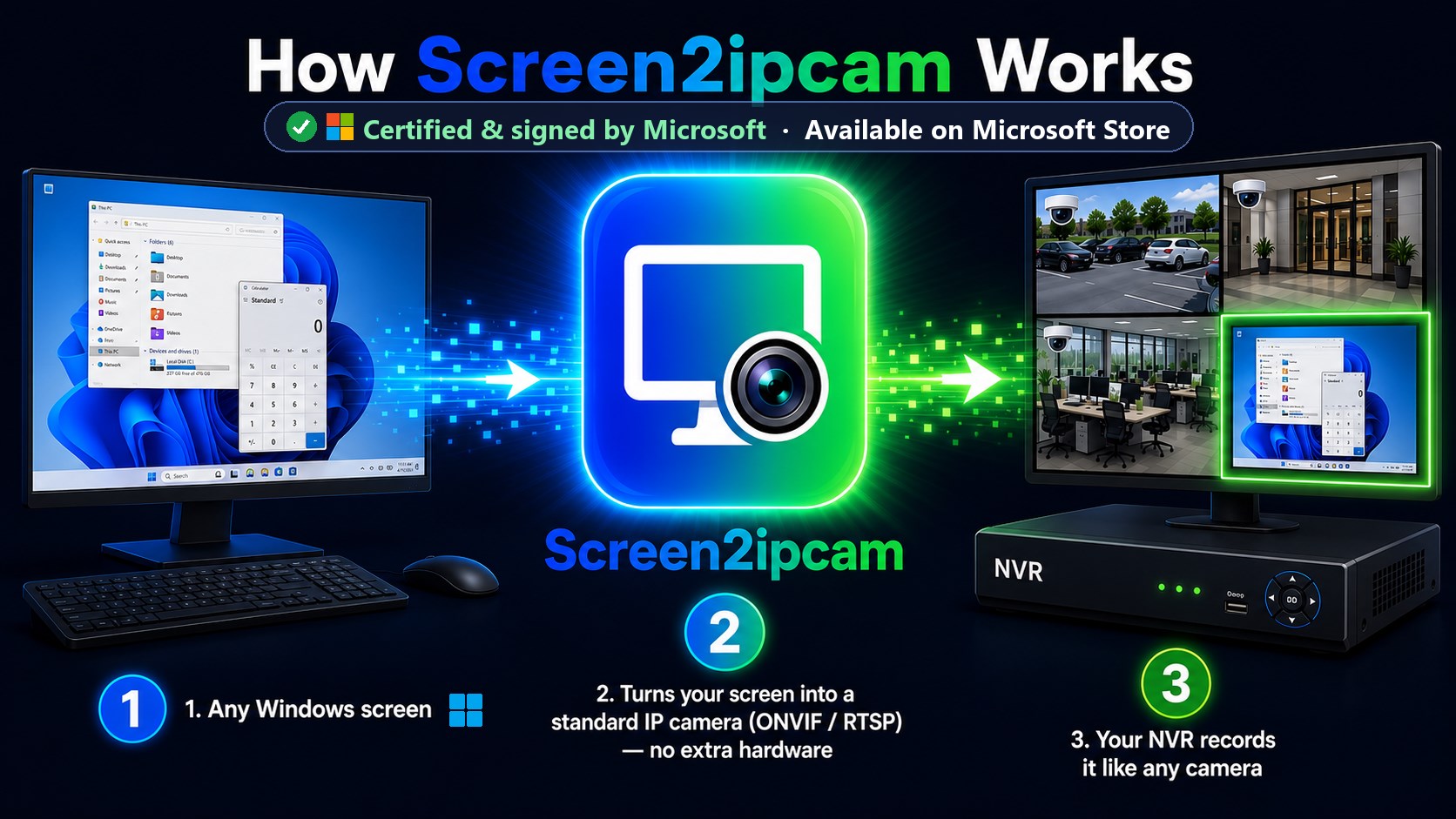
How Screen2ipcam works: Windows screen to ONVIF / RTSP stream discovered by an NVR
1

Install & run on the PC

Install Screen2ipcam on the Windows PC whose screen you want to capture (Windows 7 SP1 → 11, 32 or 64-bit). It starts serving immediately as a native app — nothing else to install.

2

Allow it through the firewall

Let these ports through on your LAN: ONVIF 8000, RTSP 554, WS-Discovery 3702, and web admin 8080. Note the PC's local IP address (e.g. 192.168.1.50).

3

Add it to your NVR / VMS

Use your recorder's ONVIF auto-search to discover it, or add it manually with the IP, ONVIF port 8000, and login admin / admin (change this in the web admin panel first).

4

Record & view

The main and sub streams appear like any camera channel. Enable continuous or motion recording, set retention, and view the screen live from anywhere your NVR is reachable.

Connection reference

ONVIF service port8000
RTSP port (H.264)554
WS-Discovery3702
Web admin panelhttp://<PC-IP>:8080
Default credentialsadmin / admin
StreamsMain + Sub (H.264)

Tip: if your NVR asks for an RTSP URL directly, use rtsp://<PC-IP>:554 and enter the ONVIF credentials. Change the default password in the web admin panel before deploying on a shared network.

Quick add per recorder

Screen2ipcam works with anything that supports ONVIF Profile S or plain RTSP H.264. Here is the short path for three popular systems.

Hikvision

  1. Go to Configuration → System → Camera Management.
  2. Click Custom / Add, set protocol to ONVIF.
  3. Enter the PC IP, port 8000, user admin, password.
  4. Save — the screen appears as a new channel with main + sub streams.

Dahua

  1. Open Camera → Registration → Device Search.
  2. Or click Manual Add and choose ONVIF.
  3. Enter IP, ONVIF port 8000, and the credentials.
  4. Apply — verify the live view, then enable recording.

Blue Iris

  1. Add a new camera → Network IP.
  2. Use Find/Inspect (ONVIF) or set the make to ONVIF.
  3. Enter IP, ONVIF port 8000, RTSP 554, credentials.
  4. Pick main stream for recording, sub stream for live preview.

The same approach works for Synology Surveillance Station, Milestone, Agent DVR / iSpy, Frigate, Shinobi and other ONVIF/RTSP platforms.

What people use it for

Any moment where "record what is on that screen, into the system I already trust" is the goal.

Dashboards & monitoring walls Point-of-sale / cashier screens Machine & SCADA / HMI panels Reception & kiosk displays Trading / finance terminals Remote lab & test benches Digital signage proof-of-play Second PC or server console Classroom & training capture Compliance / audit archiving

Screen recorder vs. Screen2ipcam

A regular screen recorder saves files on the same PC. Screen2ipcam makes the screen a first-class camera in your surveillance system.

Capability Typical screen recorder Screen2ipcam
Appears as an ONVIF Profile S cameraNoYes
RTSP H.264 main + sub streamsNoYes
Auto-discovered by NVR / VMSNoYes (WS-Discovery)
Recorded into your existing CCTV timelineNoYes
Central retention, motion & remote accessLocal onlyHandled by the NVR
Runs without .NET / extra runtimesVariesNative C++
Free edition availableVariesYes (Microsoft Store)

Honest note: Screen2ipcam is Windows-only and streams H.264 video only. If you need audio, other codecs, or a cross-platform tool, it is not the right fit.

Editions

Try it free first. Buy once when you are ready — no subscription.

Free — Microsoft Store

Runs clean for 14 days, then adds a small watermark to the video. Never expires and keeps working. Great for testing compatibility with your NVR.

Get free on Microsoft Store

Full license — one-time ~$20

Removes the watermark permanently. A single one-time payment, no recurring fees. Download from magicweb.win or SourceForge.

Buy on magicweb.win

Frequently asked questions

The essentials about ONVIF, RTSP, compatibility, licensing and setup.

Can a Windows PC really act as an ONVIF IP camera?

Yes. Screen2ipcam exposes your Windows screen as a standard ONVIF Profile S device with RTSP H.264 streams. To an NVR or VMS it looks like an ordinary network camera, so it is auto-discovered via WS-Discovery and recorded exactly like a hardware camera.

Which NVR and VMS software is compatible with Screen2ipcam?

Any recorder that supports ONVIF Profile S or plain RTSP H.264. This includes Hikvision and Dahua NVRs, Blue Iris, Synology Surveillance Station, Milestone, iSpy/Agent DVR, Frigate, Shinobi and most other VMS platforms.

Does Screen2ipcam require .NET or other dependencies?

No. Screen2ipcam is a native C++ application with no .NET, Java or external runtime requirements. It runs as a single lightweight executable on Windows.

Is there a free version of Screen2ipcam?

Yes. The Microsoft Store edition is free to use. It runs clean for 14 days, then adds a small watermark to the video, but it never expires and keeps working. A one-time full license (about $20) removes the watermark.

Which Windows versions and architectures are supported?

Screen2ipcam supports Windows 7 SP1, 8, 8.1, 10 and 11, in both 32-bit and 64-bit editions.

Which network ports does Screen2ipcam use?

ONVIF service on port 8000, RTSP on port 554, WS-Discovery on port 3702, and the built-in web admin panel on port 8080. Make sure these are allowed through the Windows firewall on your LAN.

What are the default login credentials?

The default ONVIF and web admin credentials are admin / admin. You should change them in the web admin panel (port 8080) before using Screen2ipcam on a shared network.

Does Screen2ipcam support audio or other codecs?

Screen2ipcam streams H.264 video only and runs on Windows only. It provides both a main stream and a lower-resolution sub stream, which most NVR and VMS software use for smooth live view plus full-quality recording.
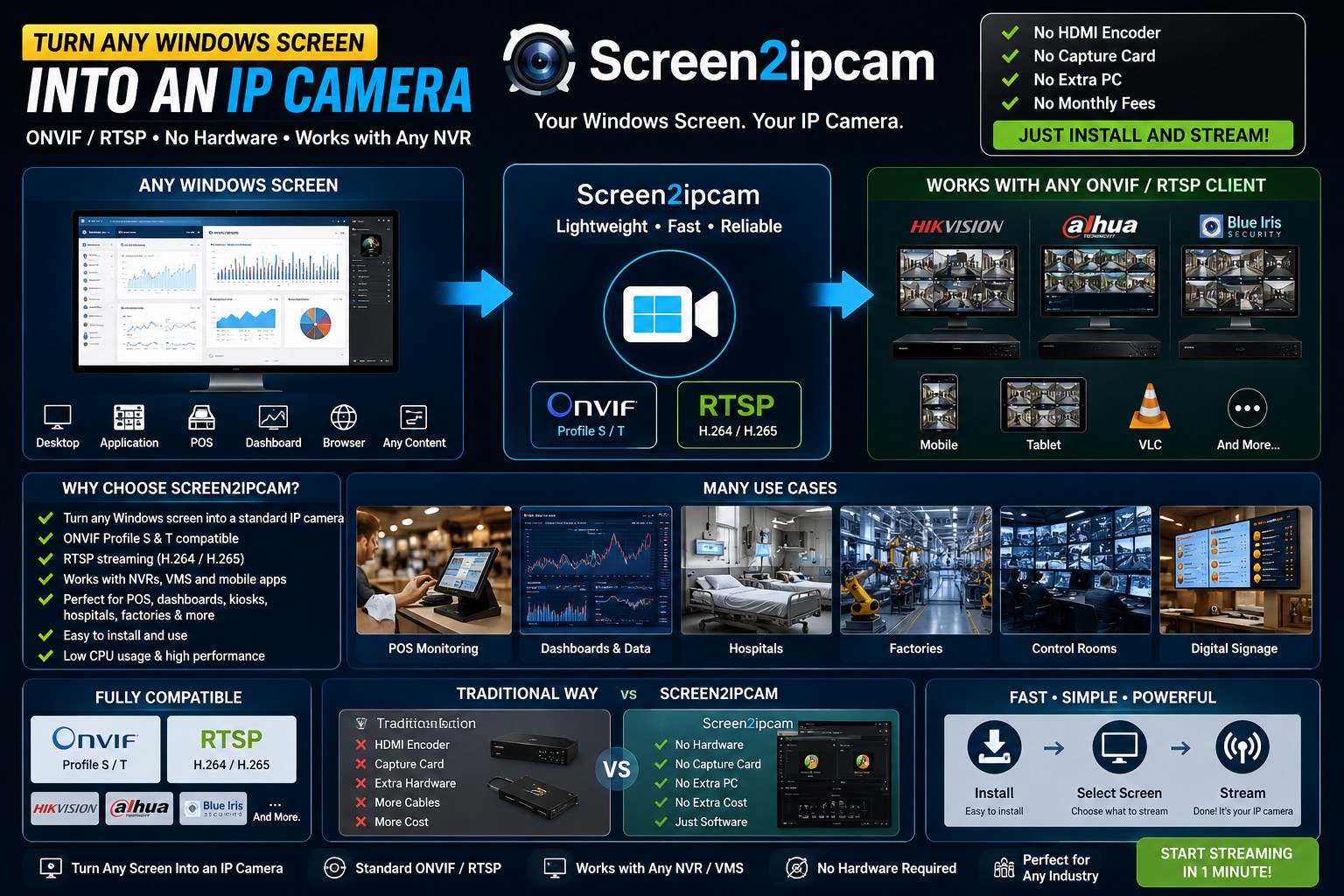

Ready to record your screen as a real IP camera?

Start free on the Microsoft Store, or get the full one-time license. Windows 7 – 11, ONVIF Profile S, RTSP H.264.