 Screen2ipcam+Salient CompleteView
Record any Windows screen in Salient CompleteView
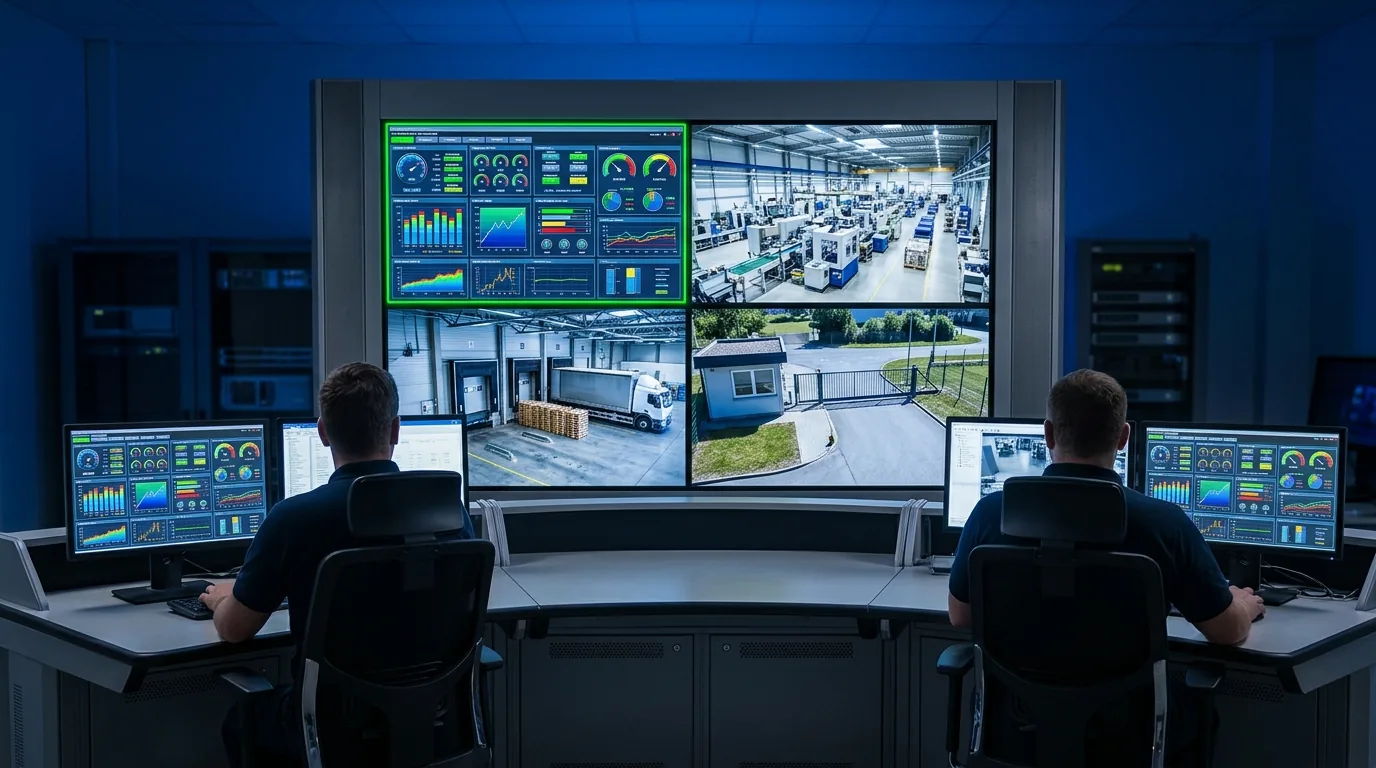
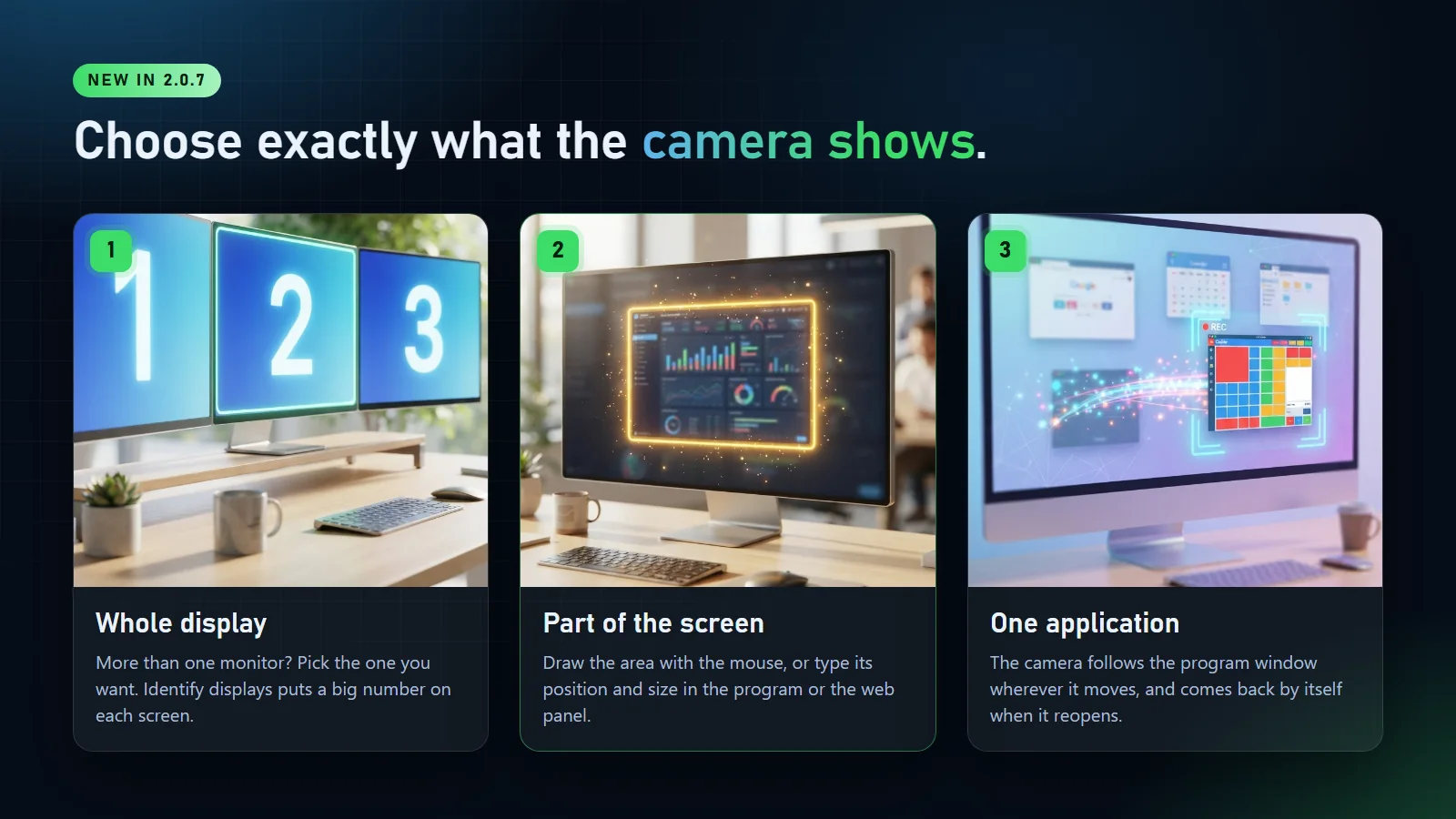
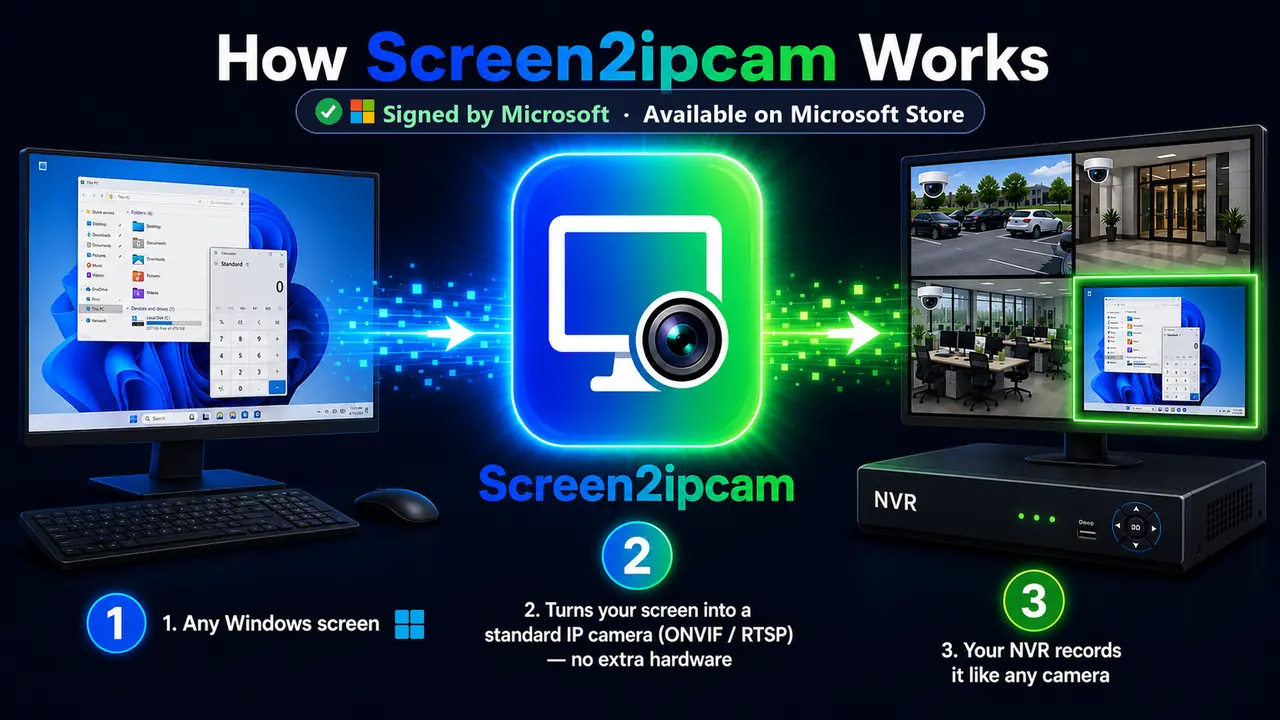
Screen2ipcam turns a Windows PC into a standard ONVIF Profile S camera. CompleteView adds it with the Generic-ONVIF driver and records the screen next to your cameras. With 2.0.7 you choose exactly what each PC records: one display of a multi-monitor PC, part of a screen, or one application.
- New: choose the display
- Generic-ONVIF driver
- ONVIF Profile S
- Main + sub stream
Download Screen2ipcam 2.0.7 for CompleteView
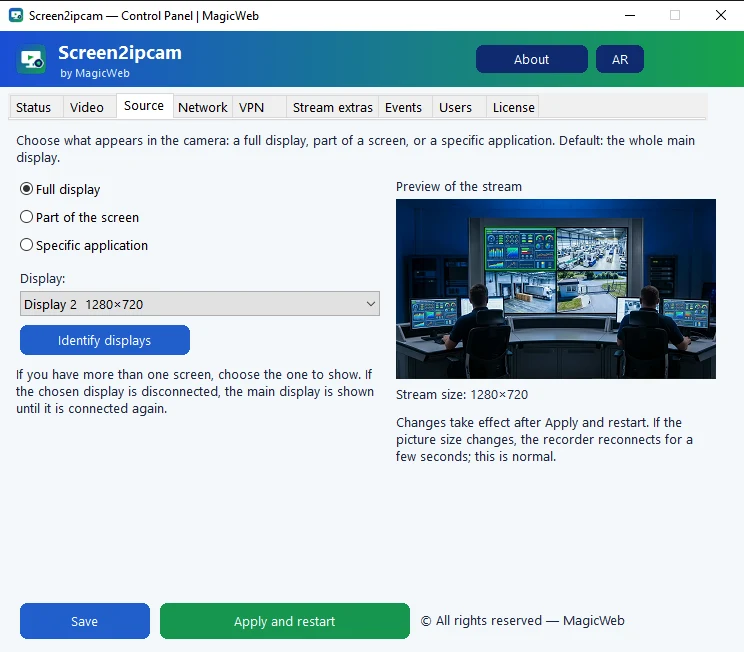
The newest Screen2ipcam, ready for CompleteView first. It adds the Capture Source tab, so each PC sends CompleteView exactly the screen you want.
- Same features, 14-day full trial and license as the standard version.
- Windows 7 SP1 to Windows 11, and Windows Server.
- Installs over an earlier Screen2ipcam version.
SHA-256
99405659C382E8A3902475CE63AA3DDE4811FFFA6944FDAED5443AB09286A83B045012F0FED146101302DC3E4533598A62FB3F9741BCD6393F190D29ACFA4FB0New in 2.0.7: choose what goes to CompleteView
How it works
Three parts and one open standard. Nothing is installed on the CompleteView server.
Your Windows PC
Screen2ipcam captures the display, area or application you chose and encodes it as H.264, like a camera sensor.
Your network
It answers ONVIF on port 8000 and streams RTSP on port 554, with a main and a sub stream.
Salient CompleteView
The recording server adds the PC with the Generic-ONVIF driver and records it next to your cameras.
The values you will need
PC-IP is the address of the PC. The user and password are the ones in Screen2ipcam, not in CompleteView.
- Device (ONVIF port)
- PC-IP:8000
- RTSP port
- 554
- User / password
- admin / admin (change it in Users)
- Main stream
- rtsp://PC-IP:554/screenlive
- Sub stream
- rtsp://PC-IP:554/screensub
- Web panel
- http://PC-IP:8080
Step by step
The CompleteView steps follow Salient's CompleteView FAQs and a published ONVIF integration guide. Menu names can differ slightly between versions.
Prepare the PC
- Install Screen2ipcam 2.0.7 (above) on the PC whose screen you want to record.
- Give the PC a fixed IP address, or a DHCP reservation, so the recording server never loses it.
- When Windows asks, allow Screen2ipcam on private networks. TCP ports
8000and554must be reachable from the recording server.
Choose what this PC records
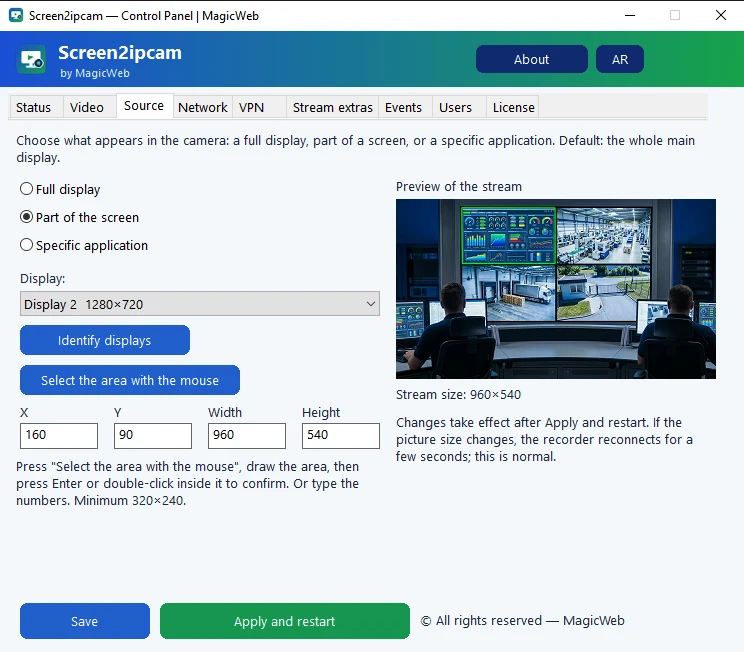
Open Screen2ipcam and go to Capture Source:
- Full display: pick the display from the list. On a PC with several monitors, Identify displays shows a big number on each screen.
- Part of the screen: click Select the area with the mouse, draw the area, then press Enter or double-click inside it. Or type X, Y, width and height.
- Specific application: pick the program. The stream follows its window wherever it is.
Click Apply and restart. The preview shows exactly what CompleteView will record. The same settings are in the web panel at http://PC-IP:8080.
Open Configure mode in CompleteView
In the CompleteView Desktop Client switch to Configure and open Recording Servers → your server → Cameras.
Add the PC with the Generic-ONVIF driver
Click Add under the camera list (or right-click Cameras) and fill in:
- Driver: Generic-ONVIF
- Device: the PC address with the Screen2ipcam ONVIF port, for example
192.168.1.20:8000 - Username / Password: the Screen2ipcam user, not a CompleteView user
Click Save. After 1 to 2 minutes the ONVIF profiles, the device info and the video appear.
Choose a profile for each recording mode
In ONVIF SETTINGS pick a profile for each mode. A lighter stream for continuous recording and the full one when something happens:
- Continuous Recording: the sub stream (640×360)
- Motion Recording / Alarm Recording: the main stream
CompleteView can detect motion on the stream itself. Screen2ipcam can also send ONVIF motion events when the screen changes: turn on Events in Screen2ipcam before you add the PC.
Want us to set it up with you?
Book a free remote session. We install Screen2ipcam with you over AnyDesk and add the PC to CompleteView.
Recommended settings
A PC screen changes little, so 10 frames per second is plenty. The main stream size follows the display or area you chose.
| Setting | Main stream (motion / alarm) | Sub stream (continuous) |
|---|---|---|
| Codec | H.264 | H.264 |
| Resolution | The chosen display or area (for example 1920×1080) | 640×360 |
| Frame rate | 10 | 10 |
| Bitrate | 2000 kbps | 512 kbps |
Watch it where you watch your cameras
Once the PC is added, it is a camera like any other in CompleteView.
If something is not right
Profiles or video do not appear
"Authentication Failed" on the Dashboard
The camera shows the wrong monitor
No connection at all
The PC has a VPN or two network cards
Test the PC on its own
Questions and answers
Which driver should I use?
Can I choose which monitor is recorded?
Does it use a CompleteView camera license?
Is the sound recorded?
Can I record more than one PC?
Does it need the internet?
How much does it cost?
For Salient partners and integrators
- Integration type
- Third-party ONVIF Profile S camera (virtual IP camera)
- CompleteView components
- Recording Server, Desktop Client (Configure mode), Web client, Mobile
- Licensing
- One CompleteView camera license per PC channel, one Screen2ipcam license per PC.
- Technical contact
- support@screen2ipcam.com
Put your first screen on CompleteView today
Every feature for 14 days. Then $20 once per PC, no subscription, works offline.